

- Joined
- Jun 4, 2019
- Messages
- 1,839
- Reaction score
- 1,732
A few of us on the team buy hardware specifically for BOINC/Distributed Computing and have decent sized farms that can do a tremendous amount of computing.
Most of the hardware comes from eBay. Buying decommissioned enterprise hardware for relatively cheap.
Not sure if you're wanting to get into BOINC now or wait till later, but if you do so now then may I suggest running Primegrid during the challenge series?
You'd need to download BOINC, but I recommend downloading the 8.0.4 version and not the 8.2.x version as it has issues.
(I am assuming you are running Windows)
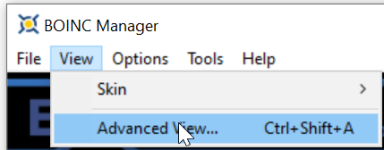
Then you will want to change the view to advanced view as it shows more details.
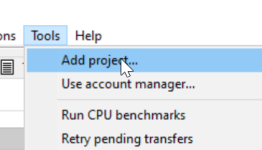
Then when you are in advanced view go to Tools > Add Project
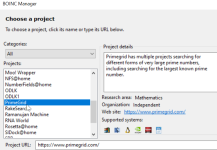
Then scroll down until you see Primegrid.
I am already attached to the project so I can't screenshot this step, but you'd want to click the "new account" ticker, enter your details and create an account. (Its important that you use the same email address for every BOINC project. This allows your CPID to be the same across all your projects)
Then you need to go to https://www.primegrid.com/ and login. Then click your account on the left.
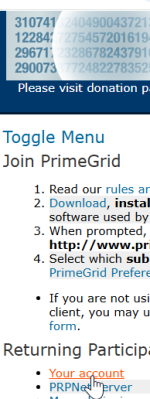
Then Primegrid preferences
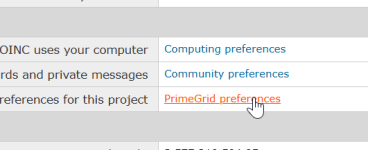
Then make sure only CPU is selected. Untick the GPUs (if they're ticked) Set the resource share to 0 (or leave it blank)
Permissions given to Primegrid to report primes under my name (Tick this)
Enter your real name (This will basically put your real name on the T5K page if you happen to find a Top 5000 Prime which this project is looking for)
Then select max number of primegrid tasks.
-This project uses 24MB of L3 Cache. So you want to make sure you run enough tasks to use the L3 but NOT go over the L3 cache.
-Then select number of threads. Again, you want to use REAL cores for this, not SMT or HT.
So for example. If you are rocking a 5950X. Then you have 64MB of L3 cache. But it's divided between two CCDs that each contain 32MB of L3. This means you can run 2x tasks. Each one of the CCDs contain 8 cores, so you'd want to run 8 thread tasks and two of them on this host. So you would select 2 tasks and 8 threads.
Then scroll down until you find
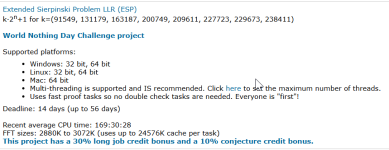
Select this project for the Challenge Series.
Now go back to the BOINC Manager. It probably downloaded the default sub project and is running tasks. You can abort these safely if you want (or run them, will take longer to compete in the challenge) Aborting the tasks is not a problem. The tasks just get sent back to the server and someone else will receive the task when they ask for work on that project.
Once back in the BOINC manager, go to Computing Preferences.
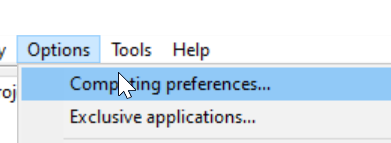
You want to use 50% of the CPU. This allows BOINC to some-what ignore SMT/HT and only run physical cores.
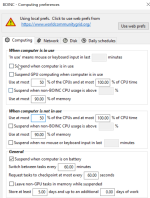
Just make sure you do this in both locations. When computer is in use and when computer is not in use.
Then click save.
You should have two EPS tasks running (if you aborted the other tasks that downloaded already)
It seems like a lot of work, but doing it a couple times it becomes easier and faster to set your permissions/preferences.
If you need help feel free to drop into our discord server for more real time help.
 discord.gg
Most of the hardware comes from eBay. Buying decommissioned enterprise hardware for relatively cheap.
Not sure if you're wanting to get into BOINC now or wait till later, but if you do so now then may I suggest running Primegrid during the challenge series?
You'd need to download BOINC, but I recommend downloading the 8.0.4 version and not the 8.2.x version as it has issues.
(I am assuming you are running Windows)
Then you will want to change the view to advanced view as it shows more details.
Then when you are in advanced view go to Tools > Add Project
Then scroll down until you see Primegrid.
I am already attached to the project so I can't screenshot this step, but you'd want to click the "new account" ticker, enter your details and create an account. (Its important that you use the same email address for every BOINC project. This allows your CPID to be the same across all your projects)
Then you need to go to https://www.primegrid.com/ and login. Then click your account on the left.
Then Primegrid preferences
Then make sure only CPU is selected. Untick the GPUs (if they're ticked) Set the resource share to 0 (or leave it blank)
Permissions given to Primegrid to report primes under my name (Tick this)
Enter your real name (This will basically put your real name on the T5K page if you happen to find a Top 5000 Prime which this project is looking for)
Then select max number of primegrid tasks.
-This project uses 24MB of L3 Cache. So you want to make sure you run enough tasks to use the L3 but NOT go over the L3 cache.
-Then select number of threads. Again, you want to use REAL cores for this, not SMT or HT.
So for example. If you are rocking a 5950X. Then you have 64MB of L3 cache. But it's divided between two CCDs that each contain 32MB of L3. This means you can run 2x tasks. Each one of the CCDs contain 8 cores, so you'd want to run 8 thread tasks and two of them on this host. So you would select 2 tasks and 8 threads.
Then scroll down until you find
Select this project for the Challenge Series.
Now go back to the BOINC Manager. It probably downloaded the default sub project and is running tasks. You can abort these safely if you want (or run them, will take longer to compete in the challenge) Aborting the tasks is not a problem. The tasks just get sent back to the server and someone else will receive the task when they ask for work on that project.
Once back in the BOINC manager, go to Computing Preferences.
You want to use 50% of the CPU. This allows BOINC to some-what ignore SMT/HT and only run physical cores.
Just make sure you do this in both locations. When computer is in use and when computer is not in use.
Then click save.
You should have two EPS tasks running (if you aborted the other tasks that downloaded already)
It seems like a lot of work, but doing it a couple times it becomes easier and faster to set your permissions/preferences.
If you need help feel free to drop into our discord server for more real time help.
Join the The FPS Team Discord Server!
Check out the The FPS Team community on Discord - hang out with 290 other members and enjoy free voice and text chat.